|
WashRa 4.1WashRa is, simply, a set of Ethiopic fonts and a keyboard layout for use with Windows application. You may use WashRa with wide range of Unicode compatible Windows application including MS Office, Open Office, Adobe Photoshop, Adobe InDesign, Mozila Thunderbird, MS Outlook, and much more. WashRa 4.1 is compatible with Windows 2000, XP, Vista, Windows Server 2003, and Windows Server 2008. The keyboard layout, generated using the MSKLC1 (Miscrosoft Keyboard Layout Creater) tool, works consistently accross Windows application with no problem. It can be switched using short-cut keys or the language bar. The WashRa fonts are released under the SIL Open Font License and for more information please visit http://www.sil.org/ofl. Changes in WashRa 4.1The noticable update in this realese includes:
DownloadWashRa 4.1 is released in two parts--WashRa Keyboard Layout (washra-keyboard-4.1.exe) and WashRa Fonts (washra-fonts-4.1.exe). You must download and install both of them to have a full functional environment.
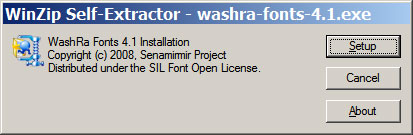
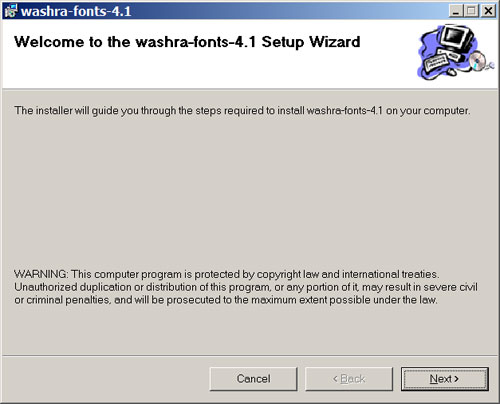
In case, if you are interested just only on the WashRa fonts without a setup program, please download the file in ZIP format. You might be also interested on Sabaean font. You can read WashRa's reference manual both in Amharic and English InstallationThis instruction assumes that you have downloaded the two WashRa files washra-fonts-4.1.exe and washra-keyboard-4.1.exe as outlined above. Which file you install first doesn't matter; however in this process, we will install the WashRa fonts first. Installing WashRa Fonts
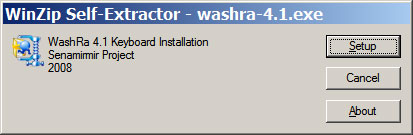
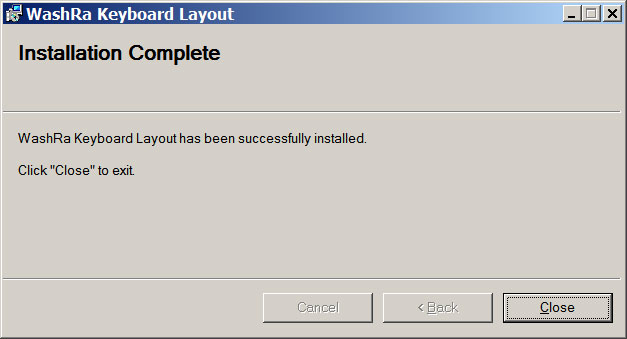
Installing WashRa Keyboard Layout
One way to check if the setup and configuration is successful is by looking at the list of keyboard layouts in the language bar on the desktop. You should see there WashRa Keyboard Layout. WashRa Keyboard Layout and UsageSwitching Keyboard: You may switch between different keyboard layouts by just pressing Ctrl+Shift or by clicking the keyboard icon on the language bar and then select the layout you want. The following set of figures show the WashRa layout; how each pair of keys stroke is mapped to Ethiopic character. Entering an Ethiopic character requires pressing a pair of keys and always the basic key must be entered first, then the qualifier key. The result is shown after each pair of key strokes entry is completed. The following figure illustrates this. 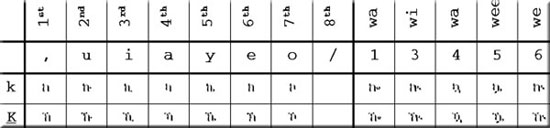 [Ethiopic 4th Order Supplement] 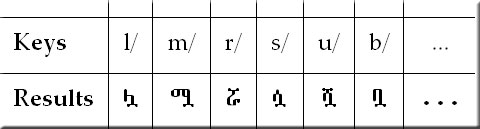 [Ethiopic punctuation marks] There is one-to-one key mapping to most of punctuation marks.  [Ethiopic digits] Two key strokes are ampped to each Ethiopic digits.  References1visit http://www.microsoft.com/globaldev/tools/msklc.mspx |







|
|
|
contact@senamirmir.com Copyright © 2006 Senamirmir Project |